
Maximum Number of Fields in a Form
If you have been customizing Invizion Accounting by adding Custom Fields to forms, you may reach a point where:
- A newly added Custom Field causes a Server Error when you try to submit a document, or
- Invizion Accounting refuses to save after the field is added.
This article explains why this happens and walks you through practical ways to fix it — no database knowledge required.
What the Errors Mean
When you hit the limit, Invizion Accounting may show one of these two errors on screen:
Error 1: "Unknown column in INSERT INTO"
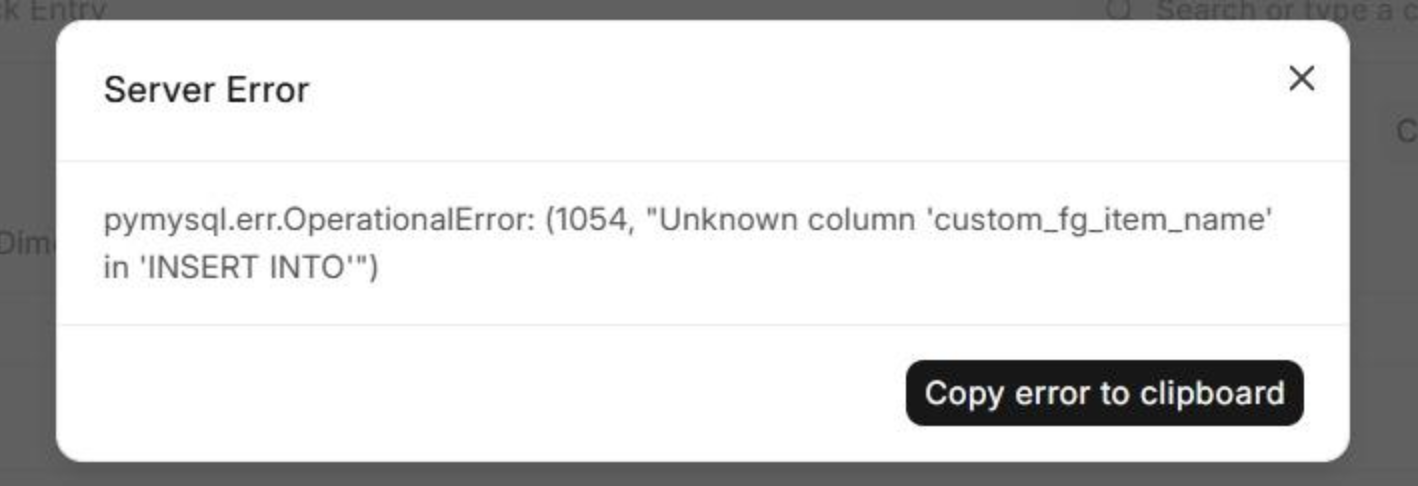
This error appears when you submit a form after adding a new Custom Field. Invizion Accounting is trying to save data for a column it cannot find in the database yet, a sign that the underlying table has hit its structural limit and the new field could not be properly registered.
Error 2: "Row size too large"
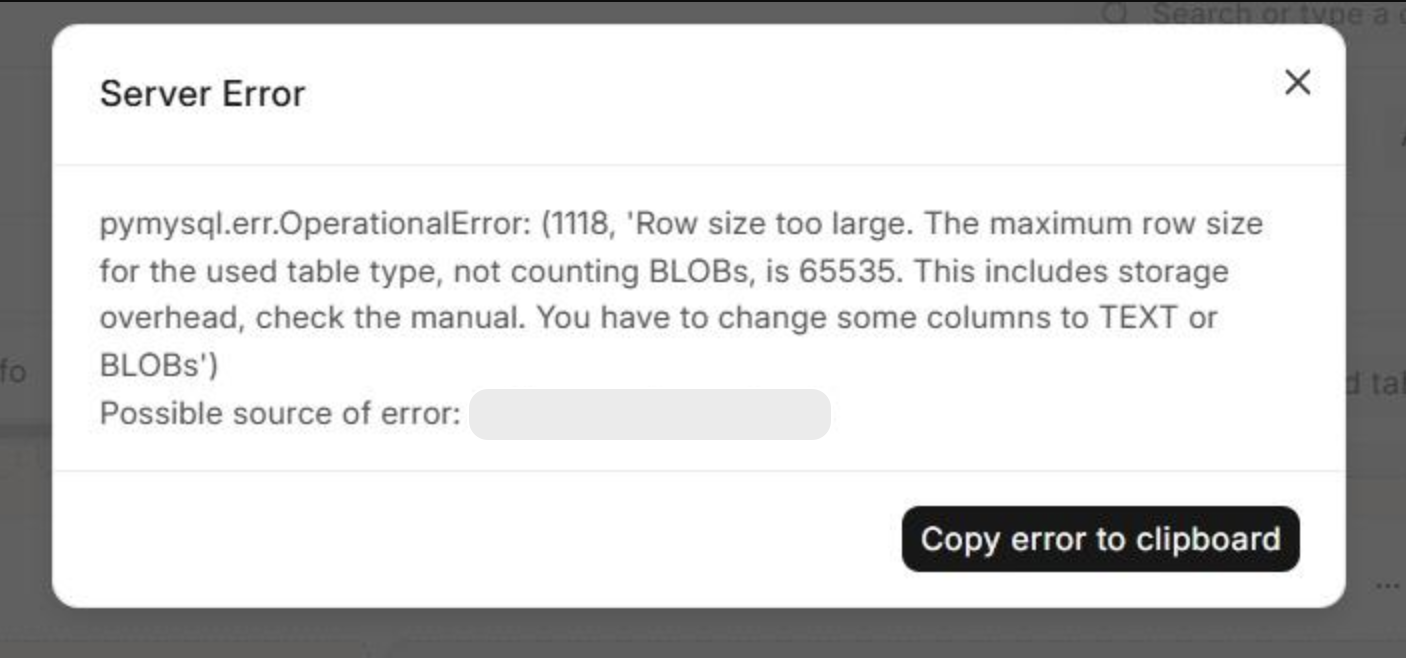
This error is more direct. The database table's row has exceeded its maximum allowed size of 65,535 bytes.
Why Does This Happen?
In Invizion Accounting (and Invizion Accounting), every form, called a DocType, corresponds to a table in the database. Each field on that form is a column in that table.
Think of it like a spreadsheet: every row can only hold so many columns before it runs out of space. MySQL (the database Invizion Accounting uses) enforces a hard row size limit of 65,535 bytes per table row. MySQL also technically supports up to 4,096 columns per table, but in practice the row size limit is hit first.
Here is a concrete example of how quickly that limit is reached:
- Fields of type Data, Link, Select, Dynamic Link, Password, and Read Only are stored as
VARCHAR(140)columns in the database. - A
VARCHAR(140)column using theutf8mb3character set allocates up to 420 bytes per value (140 characters × 3 bytes each). - That means a table can hold at most roughly 65,535 ÷ 420 = ~156 such columns before hitting the limit.
The form / doctype in question already has many built-in fields. Installing custom apps adds even more. Once you approach this ceiling, adding even one more Custom Field can push it over the edge, causing the submission errors shown above.
Functional Solutions
There are several ways to address this, ranging from quick fixes to structural changes. Start with the quick fixes if you only need a little more room, or go with the structural options if you need to add many more fields.
Fix 1: Create a Separate DocType and Link It to Primary DocType
This is the best long-term approach when you need to add a distinct group of related fields (e.g., fields for a specific department, process, or compliance requirement).
Steps:
- Go to Customize > DocType (or search "New DocType" in the search bar).
- Create a new DocType with all the fields you need.
- In the new DocType, add a Link field pointing to Primary DocType (in which you wanted to add all the fields), this connects each record back to its parent Stock Entry.
- Optionally, add a Link field on Stock Entry's Customize Form pointing back to your new DocType for easy navigation.
Why this works: Your new DocType gets its own separate database table with its own row size budget, completely independent of Stock Entry's table.
Fix 2: Create a Child Table and Add It to Stock Entry
This approach works best when your extra fields represent repeating rows of data. For example, a quality checklist or a list of items, similar to how the Items table works inside Stock Entry.
Steps:
- Go to Customize > DocType and create a new DocType. Enable the "Is Child Table" checkbox.
- Add all your fields as columns inside this child table.
- Go to Customize Form > Stock Entry.
- Add a new field of type Table and set its Options to point to your newly created child DocType.
Why this works: A Child Table is stored in its own separate database table, entirely sidestepping the row size limit of the parent form.
Techical Fixes
Fix 1: Convert Some Fields to Text-Based Types
Fields of type Text, Small Text, Text Editor, or Code are stored differently in MySQL (as TEXT or BLOB columns). Unlike VARCHAR columns, their content is stored outside the main row — they only occupy 9–12 bytes in the row itself instead of up to 420 bytes.
What to do: In Customize Form, find any Custom Fields that currently use types like Data, Link, or Select, where the value is long or does not need to be filtered/sorted, and replace them with field type to Small Text or Text. Each conversion frees up significant row space and allows more fields to be added.
Fix 2: Reduce the "Length" Property of Existing Fields
When creating a Data-type Custom Field, Invizion Accounting sets a default Length of 140. This directly controls how many bytes MySQL allocates for that column. Reducing it on fields where a shorter input is sufficient (e.g., a code field that will never exceed 20 characters) frees up space proportionally.
What to do: In Customize Form, open each Custom Field's settings and lower the Length value to what is actually needed. For example, changing Length from 140 to 20 reduces that column's allocation from 420 bytes to just 60 bytes.
Fix 3: Remove Unused Custom Fields Using Trim Tables
Custom Fields that are deleted from Customize Form are not automatically removed from the database table — their columns remain, still consuming row space.
If you are certain you no longer need the data from some old Custom Fields, you can permanently remove those columns from the database by running the trim-tables bench command:
https://frappeframework.com/docs/user/en/bench/reference/trim-tables
Note: This operation is irreversible. Any data stored in those columns will be permanently deleted. Always take a database backup before running this command.
Choosing the Right Solution
| Your situation | Recommended approach |
|---|---|
| You need many new single-value fields (one value in a form) | Create a Separate Linked DocType |
| You need repeating rows of data per Stock Entry | Create a Child Table |
| A few fields are pushing you over the limit | Convert some fields to Small Text / Text, or reduce field Length |
| You have deleted Custom Fields but their columns remain | Run trim-tables to reclaim space |